How to setup Universal Logout for Salesforce and Okta ITP

Managing user sessions across applications is critical to secure modern enterprise ecosystems. Okta Identity-Triggered Policies (ITP) allow you to logout users from apps such as Google Workspace, Slack, PagerDuty, Salesforce, etc. This guide takes you through the essential steps for setting up Universal Logout for Okta and Salesforce, explaining the technical considerations along the way.
Why Use Universal Logout with Okta ITP and Salesforce?
As enterprises expand their application ecosystems, controlling user session termination across all platforms becomes increasingly complex. Universal Logout streamlines this process by allowing to sign out users of one application and end sessions across multiple apps, which is particularly useful in preventing unauthorized access.
When combined with Okta ITP, Universal Logout provides added security. By configuring policies that trigger based on specific user or device activities, admins gain granular control over user access. For organizations using Salesforce, setting up Universal Logout with Okta ITP ensures that Salesforce sessions are securely closed, mitigating risks related to unattended, stale sessions.
Prerequisites
To configure Universal Logout for Okta and Salesforce, ensure you have:
Okta tenant with ITP configured.
Salesforce with API access and permission to manage session settings.
Okta and Salesforce integration in place (Single Sign-On (SSO) enabled).
Admin rights on both Okta and Salesforce to make necessary configuration changes
Step 1: Enable API Access and Session Management in Salesforce
Log into Salesforce with Admin credentials.
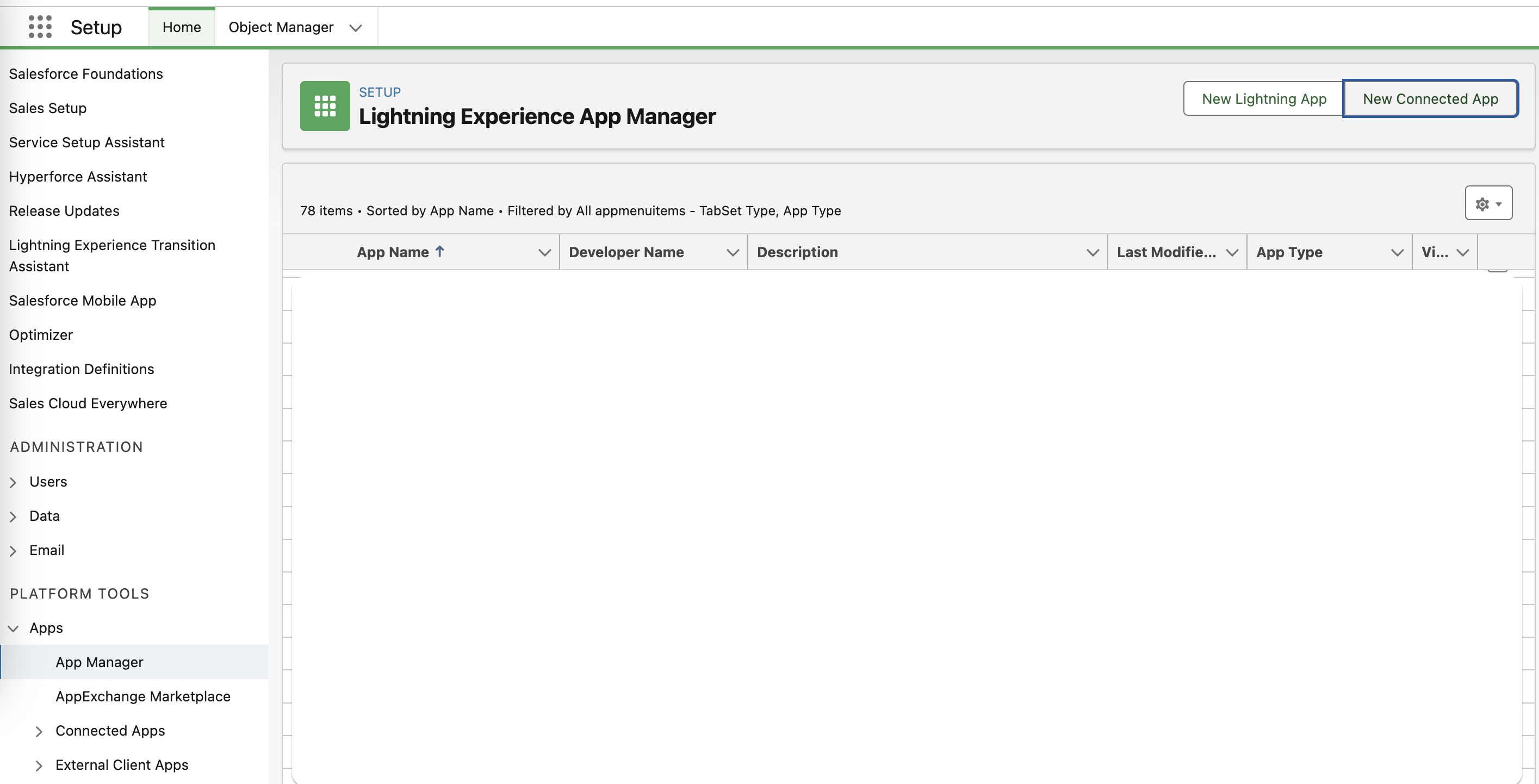
Navigate to Setup → Platform Tools → Apps → App Manager.
Create a New Connected App → Create a Connected App
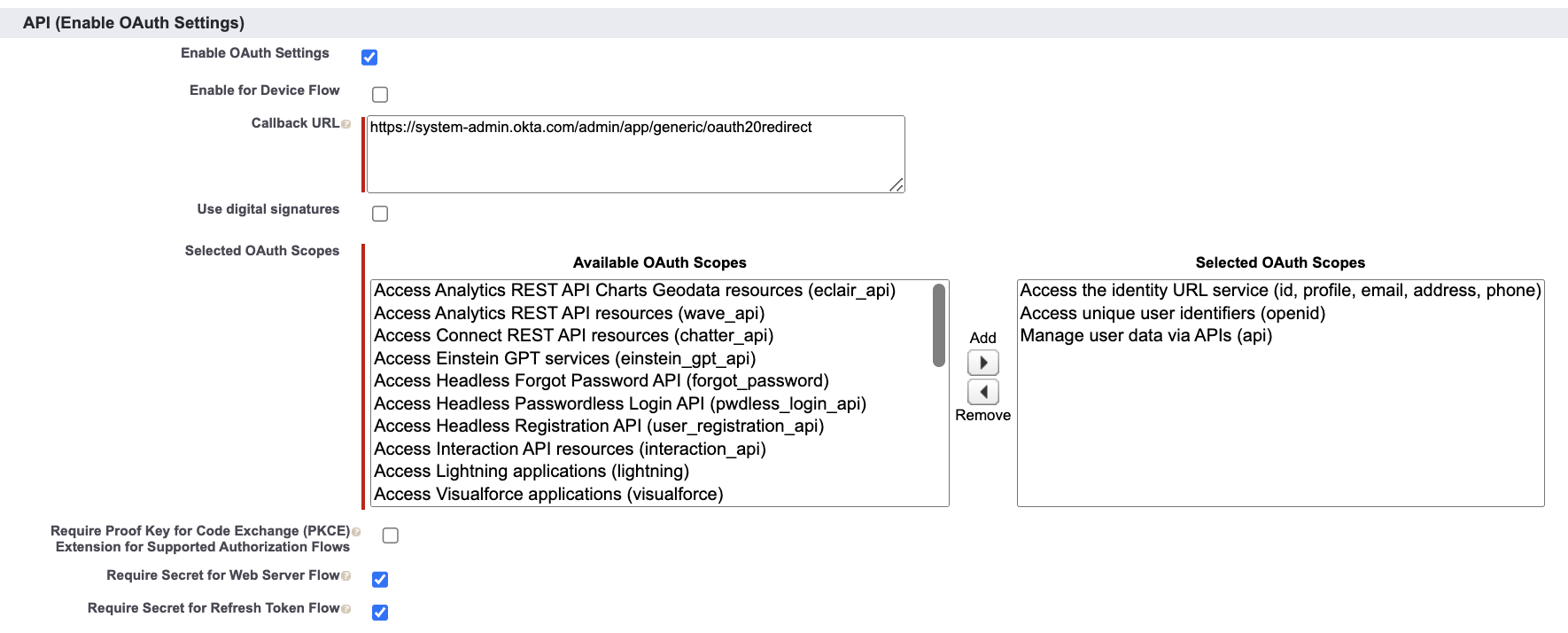
Setup Connected app. You need to provide a Callback URL as well as define OAuth scopes. Taking into consideration the least privileged access.
Callback URL -
https://system-admin.okta.com/admin/app/generic/oauth20redirectOAuth Scopes -
id,profile,email,address,phone,openid,apiRemove checkbox - Require Proof Key for Code Exchange (PKCE) Extension for Supported Authorization Flows
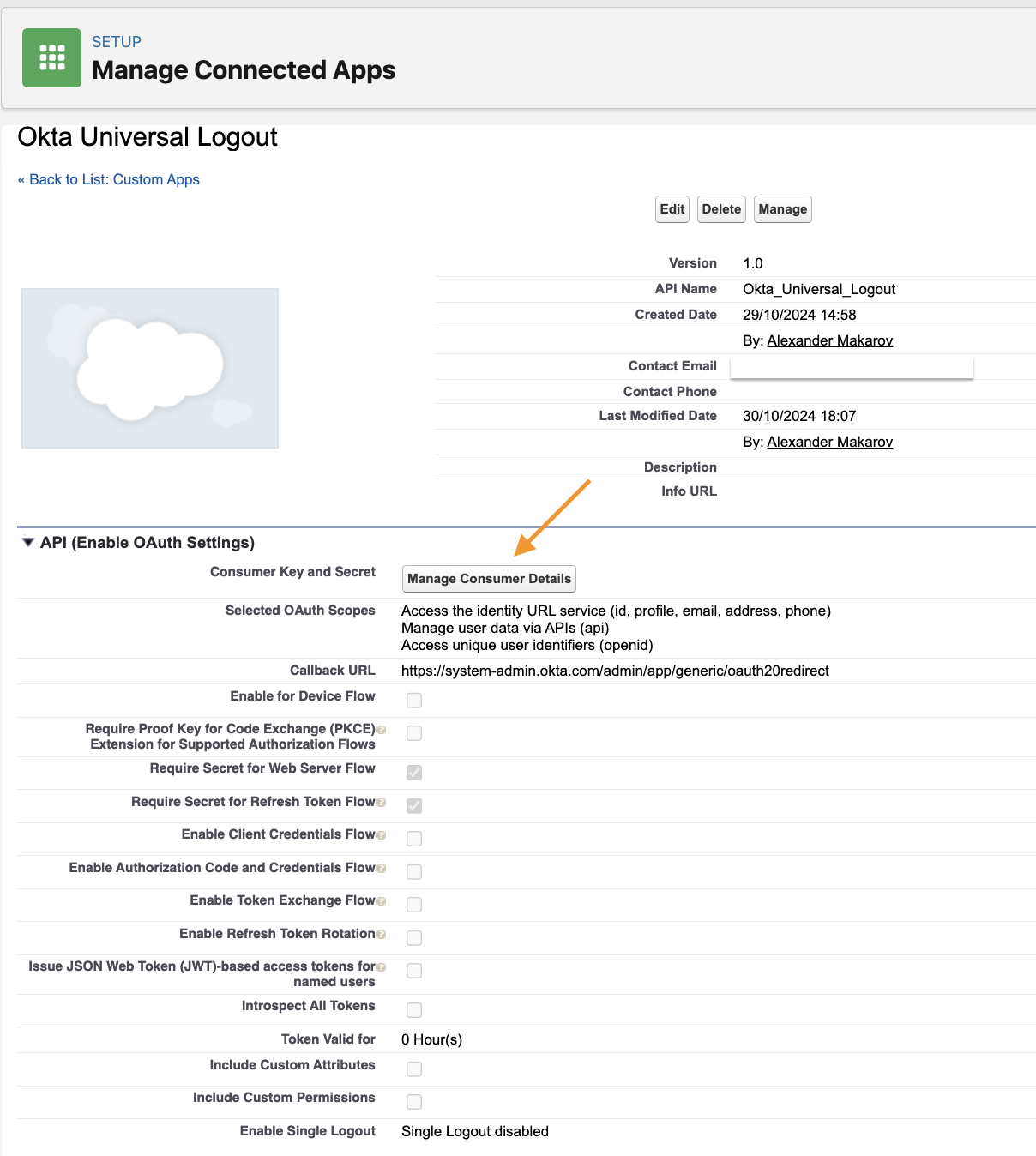
Once you will hit save you will be landed to Application Page in Salesforce, here you need to obtain Consumer Details such as Consumer Key and Consumer Secret by pressing button Manage Consumer Details.
Navigate to Okta → Applications → Salesforce and choose tab Authentication.
On the bottom of the page, you will section Logout, you need to tick this checkbox provide the Consumer Client Key and Secret, and then authenticate in the app. Upon completing those steps you will see the message “Salesforce.com account is connected”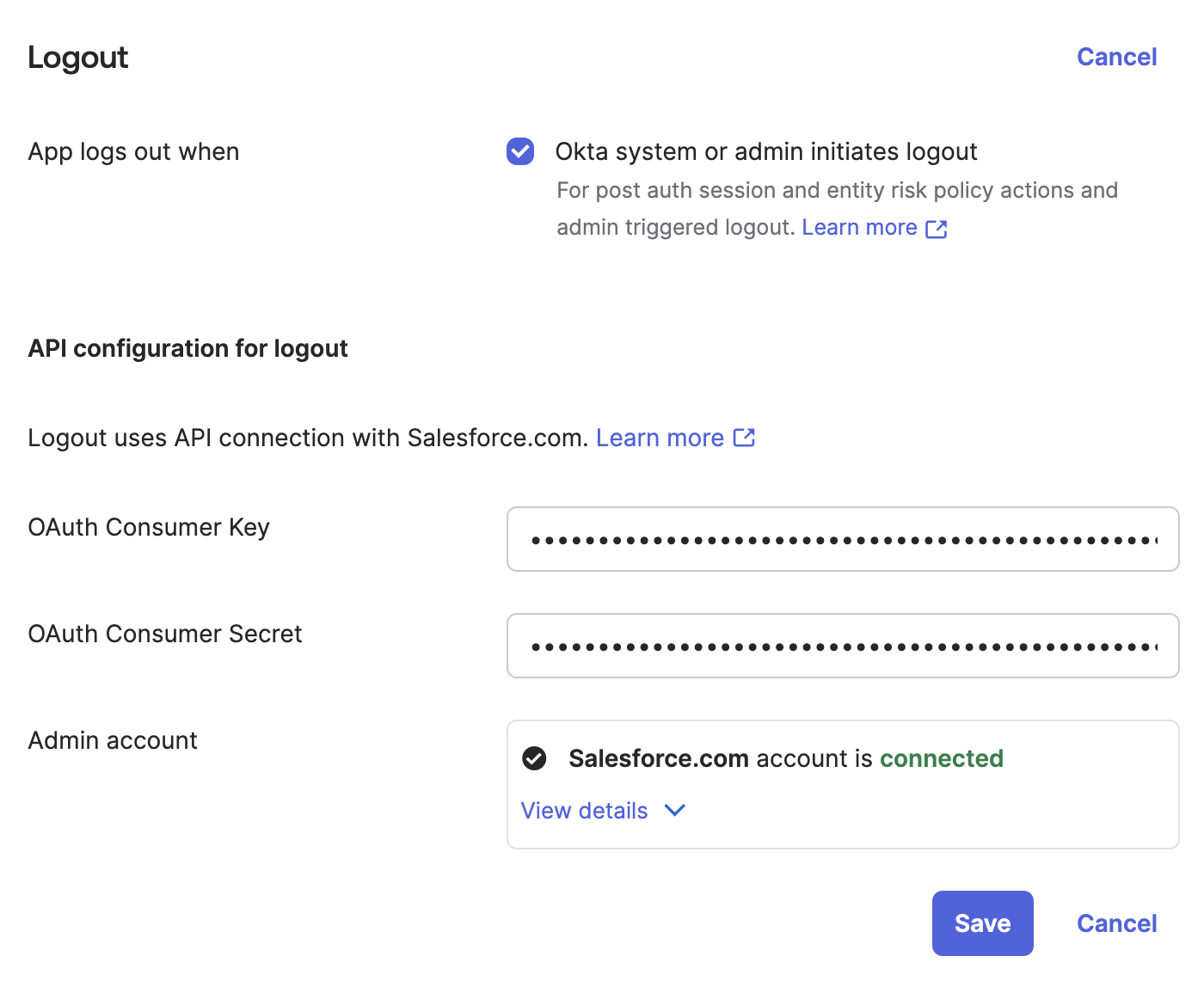
You can test logout by Clearing sessions and revoking tokens from the user profile.
Don’t forget to tick the checkbox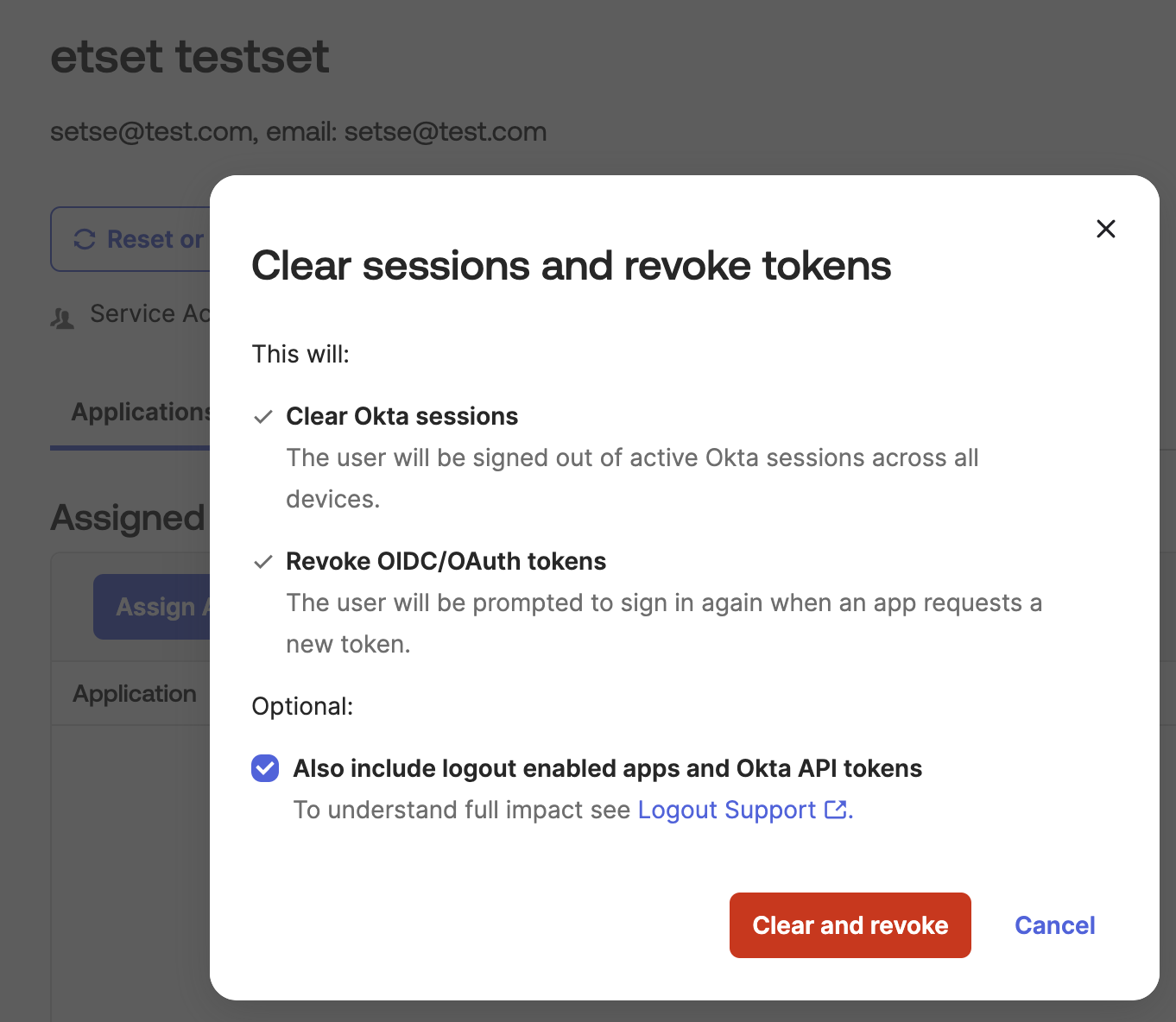
Sources
Comments
Join the discussionNo comments yet. Be the first to comment.
